🚀 Installation
DailyCost Vault supports Windows, macOS, Linux, Android, and Web — choose the platform that works best for you.
🎁 Want to see it first?
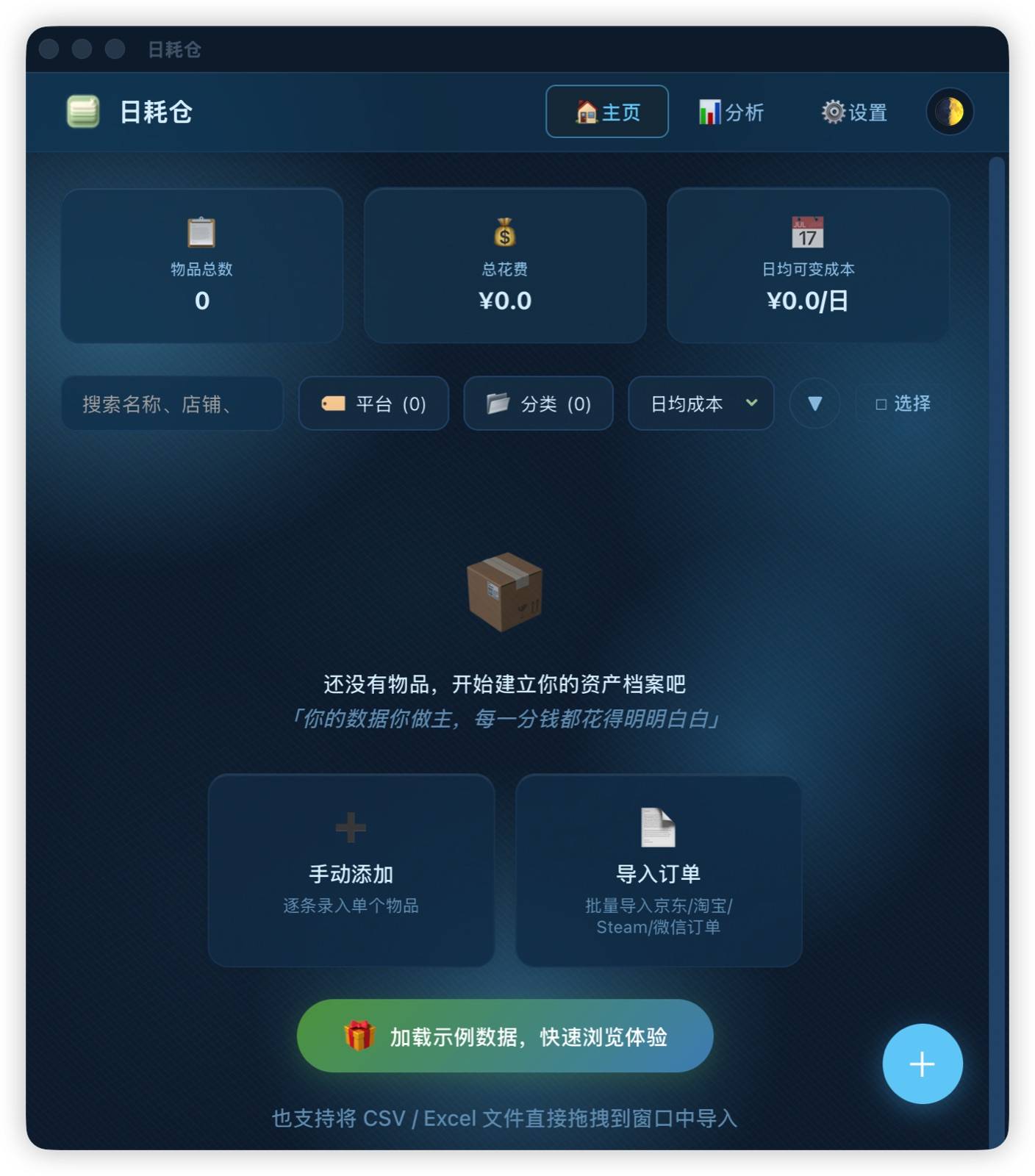
Open the app and click "Load sample data" on the empty state to experience the full feature set (built-in multi-platform sample items) — no files to import, and you can clear it anytime.
💡 Prefer not to install? Try the Web version right away — no download needed.
📥 Download & Install
Recommended workflow: Desktop first, Mobile as companion
JD.com / Taobao / Steam orders are exported as CSV via the browser extension, while WeChat bills are exported directly inside the WeChat app (no extension needed), so we recommend importing on desktop first, then migrating the archive to Android via "Export Database". Desktop stores data in local SQLite with auto-update, drag-drop CSV / Excel import, and quick database access — the best experience.
🖥️ Desktop import → 📤 Export database .db → 📱 Android import
Download Tips
All installers are from the official GitHub Release. Each installer offers multiple download sources (in priority order): ① GitHub Official → ② v4.gh-proxy.org (CN mirror) → ③ gh-proxy.com → ④ v6.gh-proxy.org → ⑤ gh-proxy.org (backup). In mainland China, prefer ②; if all mirrors fail, fall back to the Gitee mirror.
| Installer | Notes | ① GitHub Official | ② v4.gh-proxy.org | ③ gh-proxy.com | ④ v6.gh-proxy.org | ⑤ gh-proxy.org |
|---|---|---|---|---|---|---|
DailyCost.Vault_1.1.3_x64-setup.exe | x64 (recommended) | Download | Download | Download | Download | Download |
DailyCost.Vault_1.1.3_arm64-setup.exe | ARM64 (Snapdragon X and other ARM devices) | Download | Download | Download | Download | Download |
Install: Download x64-setup.exe, double-click to follow the wizard, then launch "DailyCost Vault" from the Start Menu.
💡 SmartScreen Warning: If Windows shows a warning on first run, click "More info" → "Run anyway".
| Installer | Notes | ① GitHub Official | ② v4.gh-proxy.org | ③ gh-proxy.com | ④ v6.gh-proxy.org | ⑤ gh-proxy.org |
|---|---|---|---|---|---|---|
DailyCost.Vault_1.1.3_aarch64.dmg | Apple Silicon (recommended) | Download | Download | Download | Download | Download |
DailyCost.Vault_1.1.3_x64.dmg | Intel | Download | Download | Download | Download | Download |
Install: Apple Silicon downloads aarch64.dmg (recommended), Intel downloads x64.dmg. Open the .dmg and drag DailyCost Vault.app into "Applications".
| Installer | Notes | ① GitHub Official | ② v4.gh-proxy.org | ③ gh-proxy.com | ④ v6.gh-proxy.org | ⑤ gh-proxy.org |
|---|---|---|---|---|---|---|
DailyCost.Vault_1.1.3_amd64.deb | Debian / Ubuntu | Download | Download | Download | Download | Download |
DailyCost.Vault_1.1.3_amd64.AppImage | Universal (AppImage) | Download | Download | Download | Download | Download |
Listed in the official AppImage catalog
This app is now listed in the official AppImage catalog, where the Download button points to the latest release. You can also find it on the full app list (or via the search box on the home page) by searching for BunnyChen-DailyCost or DailyCost.
Web Version
Visit bunnychen.top/BunnyChen-Item-Bookkeeping directly — no installation needed.
⚠️ Web version data is stored in browser local storage. Clearing browser cache/data will cause data loss — please export backups regularly.
| Comparison | Desktop | Web |
|---|---|---|
| Data Storage | SQLite local database | Browser localStorage |
| Auto-update | ✅ Built-in | — |
| Drag-drop CSV / Excel import | ✅ | ✅ |
| Offline use | ✅ | Requires page loaded first |
| Data persistence | High | Lost on cache clear |
🔒 Security
- All files are hosted on the official GitHub Release and are not modified.
- Desktop auto-update uses Tauri Updater and verifies minisign signatures.
- Manual downloads can be verified with the corresponding
.sigfiles using minisign.
🗂 History
See GitHub Releases for all versions and changelogs.
💡 Prefer not to install? You can also use the Web version, no download needed.
Next Steps
After installation, we recommend starting with 📥 Import CSV Orders — if you have purchase history on JD.com, Taobao, Steam, or WeChat, this is the fastest way to populate your assets.
You can also manually add items to record individual assets.