📥 Import CSV Orders
⭐ Recommended First Step
If you have purchase history on JD.com, Taobao, or Steam, CSV batch import is the fastest way to add items; WeChat / Alipay bills (CSV / Excel) are also supported with one-click import. The import automatically detects the platform, matches emojis, and deduplicates records, so there is no need to enter anything by hand.
Keep the file as originally exported — do not modify it
- Do not open it in WPS / Excel and "Save As" or edit it before saving (this changes the internal structure and can make it unreadable)
- Do not manually rename the file extension (e.g. changing
.xls,.zip, or.htmlto.xlsx) - Do not rename the WeChat / Alipay email's
.ziparchive directly to.xlsx— always unzip it first, then import the.csv/.xlsxinside - Just import the freshly downloaded original file (no need to open it or convert it)
The sites the extension relies on can change at any time
The page structure and APIs of Taobao / JD.com / Steam can change at any time. When they do, exporting may break (most typically the export finishes but reports "0 orders"). If that happens, please report it on GitHub Issues or in the Bilibili video comments, and it will usually be fixed quickly.
Supported Batch-Import Platforms
Batch import supports the following data source platforms (✅ checked = now supported):
✅ Now Supported (auto-detection · auto-dedup · auto emoji matching)
- 🐶 JD.com — one-click CSV export via the browser extension
- 🛒 Taobao / Tmall — one-click CSV export via the browser extension
- 🎮 Steam — one-click CSV export via the browser extension
- 💬 WeChat Bills — "Download Bill" inside the WeChat app (CSV / Excel)
- 💳 Alipay — "Transaction Details" export inside the Alipay app (CSV / Excel)
⏳ Coming Soon (in the pipeline)
- 🛍️ Pinduoduo
- 🐟 Xianyu
📱 Douyin Mall
JD.com / Taobao / Steam → see "Import via the Browser Extension" below
- WeChat / Alipay → no extension needed, see "Import WeChat / Alipay Bills" below
- Other platforms (Pinduoduo / Xianyu / Douyin Mall, etc.) are in the pipeline. In the meantime, use "Add Item" to enter them manually
📁 File Format Quick Reference
Check this section before importing to make sure the file you have is in the right format. All data sources use common standard formats (CSV text or Excel), which the system detects automatically — no manual renaming or re-encoding needed:
| Data source | File format | Example filename | Where it comes from | What gets imported |
|---|---|---|---|---|
| 🐶 JD.com | .csv text | jd-orders-20260803-204310-complete.csv | One-click export from the extension | Orders (with product links / multi-item details) |
| 🛒 Taobao / Tmall | .csv text | tb-orders-20260803-204317-complete.csv | One-click export from the extension | Orders (with product links / model style) |
| 🎮 Steam | .csv text | steam-orders-20260803-203151-complete.csv | One-click export from the extension | Game purchases (refunds / wallet top-ups auto-filtered) |
| 💬 WeChat bill | .csv or .xlsx | 微信支付账单流水文件(20250101-20260101)_20260804233920.xlsx | WeChat app "Download Bill" → unzip from email | Expense records (income / refunds auto-filtered) |
| 💳 Alipay | .csv or .xlsx | Filename starts with alipay- / zfb- or "支付宝"; otherwise detected from the 交易订单号 column in the content | Alipay app "Transaction Details" → download from email | Expense orders (income / refunds auto-filtered) |
✅ Detection rules: the
jd-,tb-,steam-,wx-,alipay-/zfb-filename prefixes, as well as each platform's unique header columns (such as WeChat's 交易单号 / transaction ID and Alipay's 交易订单号 / transaction order ID), are all recognized automatically. Just drag in the unmodified original export file and you are good to go.
Supported extensions are only .csv and .xlsx
The system (desktop / browser / Android) only accepts these two file types: - JD.com / Taobao / Steam: .csv text only (the extension exports .csv; it does not produce .xlsx) - WeChat / Alipay: either .csv or .xlsx (exported inside the app; the email download is usually .csv, sometimes .xlsx)
Other formats (.xls, .txt, .json, archives like .zip, etc.) are not supported and will be reported as "Not a CSV/Excel file". If you received a .zip from WeChat, unzip it first, then import the .csv / .xlsx inside.
Import via the Browser Extension (JD.com / Taobao / Steam)
🧩 Install the extension → 📤 Export CSV → 📥 Import into DailyCost Vault
1. Install the Browser Extension
Supported browsers: Chrome, Edge, and other Chromium-based browsers — one extension covers all three platforms.
Desktop (recommended): one-click install inside the app
The extension ships with the desktop installer, so there is nothing extra to download:
- Open Settings → 🧩 Browser Extension in DailyCost Vault and click Install Extension The app extracts the extension into a
browser-extensionfolder inside the system app-data directory and launches your chosen browser (⚠️ browsers discard internal addresses passed by external apps, so Open Extensions Page only lands on a new tab — typeedge://extensions/orchrome://extensions/in its address bar and press Enter; the settings page also shows the exact address for your browser) - On that page turn on Developer mode → click Load unpacked → select that folder
- Back in the app click I installed it, check now — a ✅ status means you're done (browsers take a few seconds to persist extension records; the app retries automatically)
That folder is hidden by default — no need to hunt for it
The app gives you three shortcuts: click Show in File Manager to open it, click Copy Path to grab the path, or press ⌘⇧G (macOS) / Ctrl+V (Windows) / Ctrl+L (Linux) in the browser's file picker and paste the path.
The last step must be clicked manually
Browsers do not let an external program install an extension silently (Chrome 137+ removed the --load-extension flag, and macOS/Windows block external installs from local CRX files), so Load unpacked cannot be automated by the app — but it is a one-time step.
Auto-updates with the app — no reinstall
The extraction path is fixed, so the extension updates in place when the app updates. Do not delete that folder manually — deleting it breaks the extension, though restarting the app restores it.
Web version / manual install: download the zip
📥 Download the Browser Extension (zip)
- Download and unzip the zip above to get the
dailycost-exporter-extensionfolder, which containsmanifest.json. Do not delete this folder. - Open your browser's extensions page and turn on Developer mode:
- Chrome:
chrome://extensions/ - Edge:
edge://extensions/ - Click Load unpacked and select the folder you just unzipped.
- The extension icon 🧩 should appear in the toolbar.
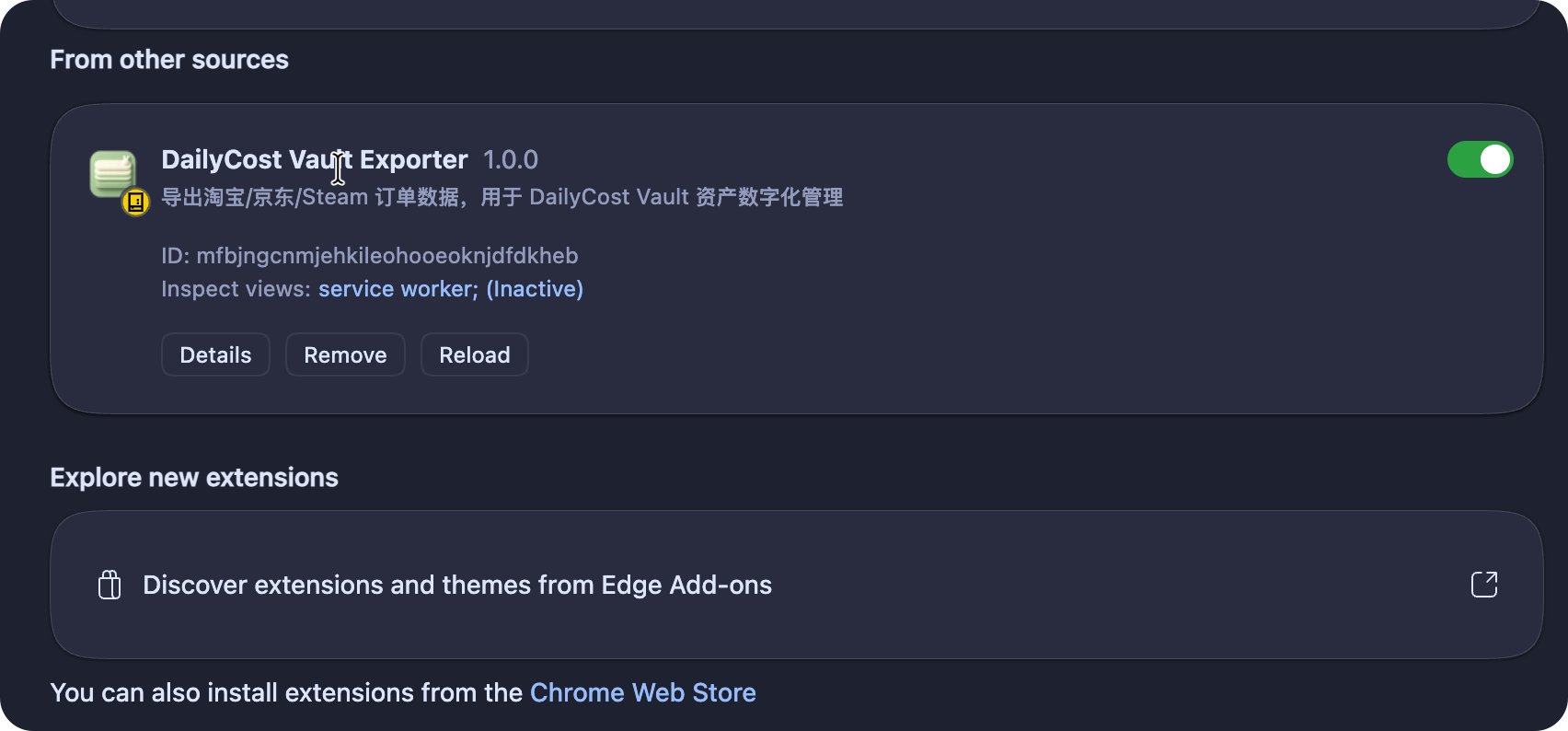
💡 After you finish exporting, you can remove the extension from the extensions page. This will not affect your CSV files. We recommend removing it after use.
If you previously installed an older copy by unzipping the zip, the app will flag it as an "Old copy found" — remove it from the extensions page so two copies don't run at once and duplicate your exports.
2. Export the Order CSV
The three platforms follow the same basic flow:
- Log in and open your own order page.
- Click the extension icon 🧩 in the toolbar. The extension will detect the current platform automatically.
- Use the suggested options. If you are unsure, the defaults are fine.
- Click Start Export. Progress appears in the bottom-right corner, and the CSV downloads automatically when finished.
| Platform | Open this page | Suggested options |
|---|---|---|
| 🛒 Taobao | Purchased Items | Set Order Status to Completed |
| 🐶 JD.com | My Orders (also works if redirected to the HK site order.jd.hk) | Use a custom year range for Date Range and set Order Status to Completed |
| 🎮 Steam | Purchase History | Click Start Export directly |
💡 Exporting JD.com orders in year-based batches reduces the chance of risk-control blocks. Files are automatically named like
jd-orders-20260804-103000-complete.csv.⚠️ Steam exports include refunds and wallet top-ups too, but you do not need to worry about them. The system filters them during import.
🔒 Mask Sensitive Data is checked by default to protect privacy.
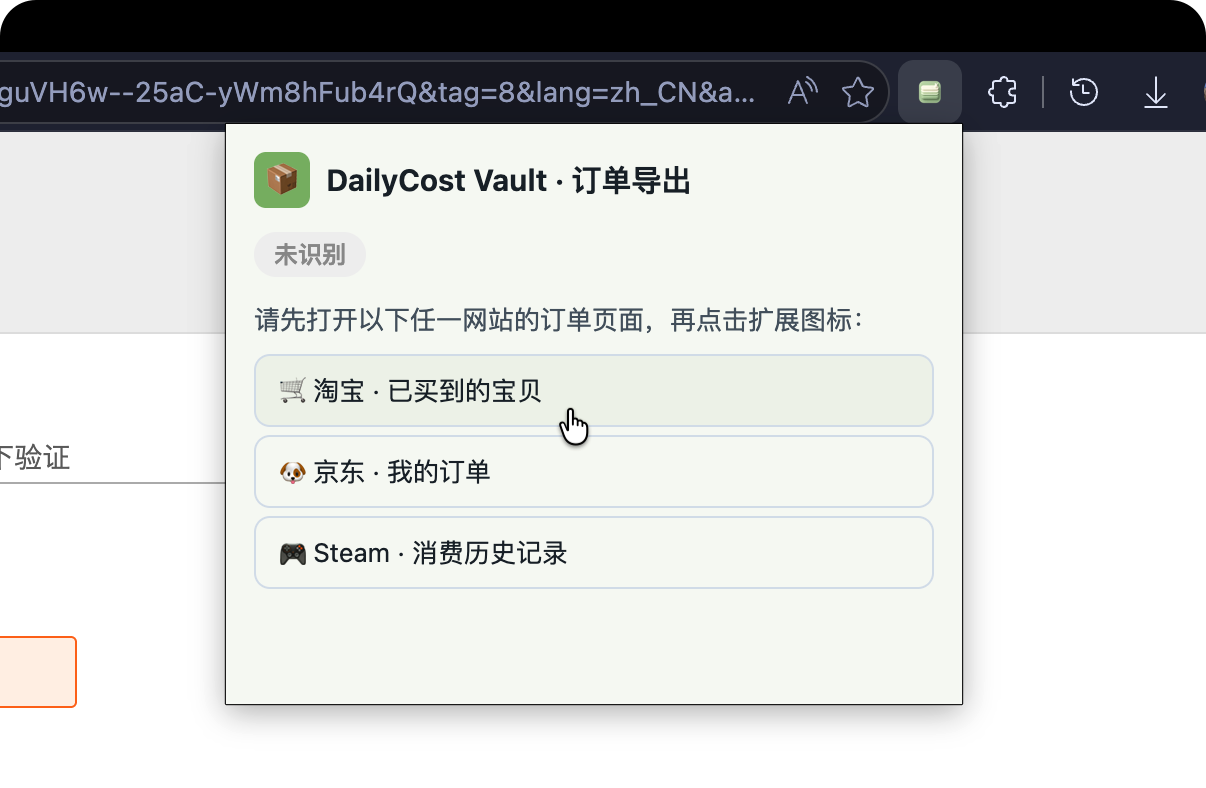
What the exported CSV looks like
The extension exports comma-separated UTF-8 text that you can open in Notepad / Excel / any text editor. The three platforms have slightly different key columns, but the core info (order ID, product name, amount, time) is the same:
| Platform | Example filename | Key columns |
|---|---|---|
| 🐶 JD.com | jd-orders-20260803-204310-complete.csv | 订单编号 (order ID) 商品名称 (product name) 实付金额 (paid) 付款时间 (paid time) 订单状态 (status) 商品明细JSON (→ product link) |
| 🛒 Taobao / Tmall | tb-orders-20260803-204317-complete.csv | 订单编号 (order ID) 商品名称 (product name) 实付金额 (paid) 付款时间 (paid time) 订单状态 (status) 商品链接 (product link) 型号款式 (model style) |
| 🎮 Steam | steam-orders-20260803-203151-complete.csv | 交易ID (transaction ID) 物品名称 (item) 类型 (type) 总计 (total) 日期 (date) |
What the filename means
In jd-orders-20260803-204310-complete.csv: jd- is the platform ID, 20260803-204310 is the export time, and complete means a full export (interrupted exports become -partial). The platform ID and filename are auto-generated by the extension — you only need the .csv file to import. No renaming required.
ℹ️ These three platforms only accept
.csvtext —.xlsxis not supported for them.
3. Import into DailyCost Vault
After you have the CSV files, you can import them in either of two ways:
- Drag and drop (recommended) — drag the CSV files into the Data Import area on the Settings page. You can drop multiple files at once.
- Select files — go to Settings → Data Import → click Select CSV Files, then hold Ctrl to select multiple files.
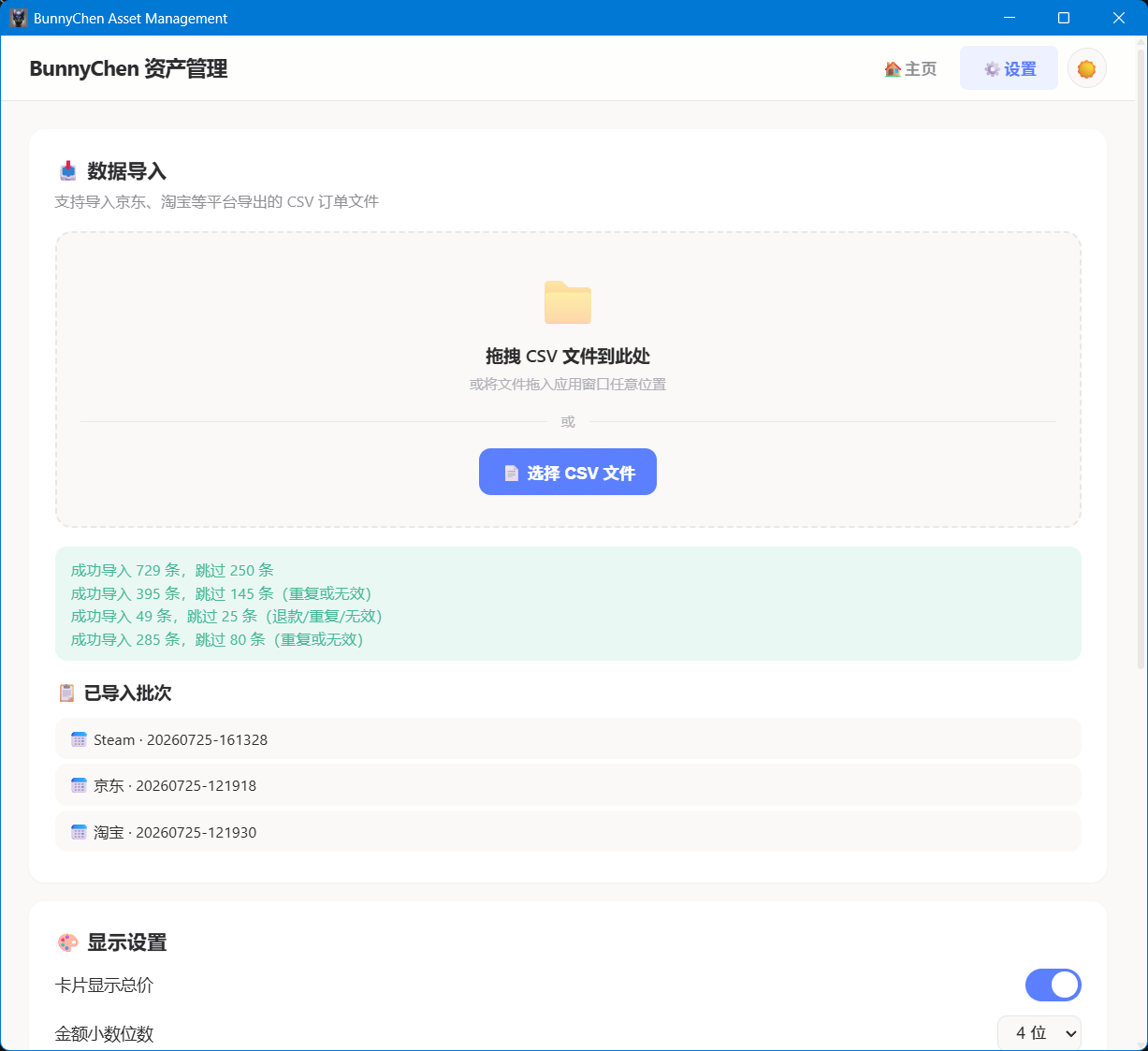
After import, you will see a message like Success X, Skipped X. Skipped means the order already exists or does not meet the import conditions, so the system has already deduplicated it.
Import WeChat Bills (No Extension Needed)
WeChat bills can be exported directly from inside the WeChat app — no browser extension required. The exported file is CSV / Excel and can be imported by dragging it into DailyCost Vault:
- Open WeChat → Me → Services → Wallet
- Tap "Bills" in the top-right corner
- Tap "FAQ" in the top-right corner
- Tap "Download Bill"
- Choose "For Personal Reconciliation"
- Select the transaction type and time range, then tap "Next"
- Enter your email address and submit. WeChat will send the bill download link to that email
- Download the bill archive (zip) from your email, unzip it to get the CSV / Excel file, then drag it into DailyCost Vault (or click "Select File" in Settings to import)
📖 For a detailed illustrated guide, see: How to Export WeChat Bills as Excel (Baidu Experience)
What the WeChat bill looks like
After unzipping the email archive, you get a .csv or .xlsx file (openable in Excel / spreadsheet apps). Filenames look like:
微信支付账单流水文件(20250101-20260101)_20260804233920.xlsx
The first dozen or so lines are metadata (WeChat nickname, time range, income/expense statistics, etc.). The real header and data rows come after the metadata, with these columns:
| Column | Meaning |
|---|---|
| 交易单号 (transaction ID) | Unique ID, used for dedup |
| 商户单号 (merchant order number) | Merchant-side order number |
| 交易时间 (transaction time) | YYYY-MM-DD HH:MM:SS |
| 交易对方 (counterparty) | Merchant name |
| 商品 (product) | Product name (falls back to counterparty when empty) |
| 收/支 (income/expense) | Distinguishes expense / income |
| 金额(元) (amount) | Amount |
| 支付方式 (payment method) / 备注 (remark) | Merged into the model/style field |
| 当前状态 (status) / 交易类型 (transaction type) | Used for filtering |
Ignore the leading metadata
The leading lines like "微信昵称 / 起始时间 / 共 N 笔记录" are skipped automatically. Just drag the entire .csv / .xlsx file into DailyCost Vault — the system locates the real data header for you.
WeChat Bill Import Rules: Kept vs Filtered
The system automatically distinguishes data during import, so you always know what is kept and what is filtered out:
✅ Kept (imported)
- Only "Expense" records are imported (Income/Expense column = 支出 / Expense)
- Status whitelist: 支付成功 (Payment Successful) / 已支付 (Paid) / 交易成功 (Transaction Successful) / 完成 (Completed) / 已转账 (Transferred) / 对方已收钱 (Received) / empty
- No transaction-type filtering: transfers, red packets, QR-code payments, group collections, and family-card payments are kept too, so you see your full daily spending (product name falls back to the counterparty when empty)
- Amount is taken as an absolute value; payment method + remark are merged into the model/style field; records are deduplicated by transaction ID
❌ Filtered (skipped)
- Income / not-expense records
- Refund or abnormal statuses: 已全额退款 (Fully Refunded), 已退款(¥X) (Refunded ¥X), 对方已退还 (Counterparty Refunded), etc.
- Records with an empty transaction ID, amount ≤ 0, or duplicates of existing records
Import Alipay Bills (No Extension Needed)
Alipay transaction details can be exported directly from inside the Alipay app — no browser extension required. The exported file is CSV / Excel and can be imported by dragging it into DailyCost Vault:
- Open the Alipay app → My → Settings (top-right) → Bills (or tap Bills on the home screen)
- On the Bills page, tap "···" → "Get Transaction Statement" (some versions label it under "Transaction Records")
- Choose "For Personal Reconciliation", then select the time range to export
- Make sure to tick all info columns: in the export options, tick "Show Counterparty Info" and "Show Product Description Info" (plus any other available options) — only then will the exported file include the "Counterparty" and "Product Description" columns, so product names and store names import in full
- Enter your email address and submit. Alipay sends the transaction file to that email (some versions allow downloading directly in the app)
- Download the file from your email and drag it into DailyCost Vault (or click "Select File" in Settings to import)
📖 For a detailed illustrated guide, see: How to Export Alipay Transaction Bills (Zhihu)
What the Alipay bill looks like
Alipay exports a .csv or .xlsx file whose filename usually contains "交易明细", or starts with the alipay- / zfb- prefix. The file has about twenty lines of metadata and a dashed separator line at the top; the real header and data rows come after the separator, with columns such as:
| Column | Meaning |
|---|---|
| 交易订单号 (transaction order ID) | Unique ID, used for dedup |
| 商家订单号 (merchant order number) | Merchant-side order number |
| 交易时间 (transaction time) | YYYY-MM-DD HH:MM:SS |
| 商品说明 / 产品说明 (product description) | Product name (falls back: counterparty → transaction category → counterparty account) |
| 交易对方 (counterparty) | Store name |
| 收/支 (income/expense) | Distinguishes expense / income |
| 金额 (amount) | Amount |
| 收/付款方式 (payment method) / 备注 (remark) | Merged into the model/style field |
| 交易状态 (status) / 交易分类 (transaction category) | Used for filtering |
⚠️ Alipay CSV files are often GBK-encoded (they look fine in Windows but garbled if opened as UTF-8). DailyCost Vault detects the encoding automatically and imports them correctly — no manual conversion needed.
Alipay Bill Import Rules: Kept vs Filtered
✅ Kept (imported)
- Only "Expense" orders are imported (Income/Expense column = 支出 / Expense)
- Status whitelist: 交易成功 (Transaction Successful) / 支付成功 (Payment Successful) / empty
- Product name is taken from the product description, falling back through counterparty → transaction category → counterparty account when empty; store name falls back through counterparty → counterparty account → transaction category
- Amount is taken as an absolute value; payment method + remark are merged into the model/style field; records are deduplicated by transaction order ID
❌ Filtered (skipped)
- Income / not-expense / refund records (refunds, transfers, withdrawals, Yu'e Bao earnings, etc.)
- Abnormal statuses: 退款成功 (Refund Successful), 交易关闭 (Transaction Closed), 解冻 (Unfrozen), etc.
- Records with an empty transaction order ID, amount ≤ 0, or duplicates of existing records
💡 Always tick all info columns. Alipay export lets you tick/un-tick columns. If you drop columns like "Product Description" or "Counterparty", the import still works, but product/store names degrade to the transaction category / counterparty account (less readable). Ticking them all gives the most complete product and store names.
About duplicates between JD / Taobao orders and WeChat / Alipay bills
Deduplication in DailyCost Vault is two-fold: within-platform + cross-platform. Within a platform, records are deduplicated by order number / transaction ID. Cross-platform, DailyCost automatically detects that the same purchase appears in both a platform order CSV and a payment bill (WeChat Pay can pay for JD / Taobao; Alipay can pay for Taobao). Any bill record whose merchant order number ends with a platform order number and whose amount matches is treated as the same purchase and skipped automatically, so nothing is counted twice.
Both import orders avoid double-counting (the import result reports "N cross-platform duplicates"), but we recommend importing the JD / Taobao order CSVs first, then the WeChat / Alipay bills: cross-platform dedup keeps whichever record was imported first, and platform order CSVs carry product links, item numbers, and multi-item details (bills only have a merchant order number, no product link), so importing the platform orders first keeps the richer record. In practice about ¼ of Alipay spending (Taobao orders) can be completed with product info this way; the rest — transport / dining / Huawei, etc. — has the bill as its only source, so the order doesn't matter.
Recommendation: still treat the platform's own order export (JD / Taobao CSV) as the source of truth, and use WeChat / Alipay bills mainly for daily spending that cannot be exported from a platform.
What the System Does Automatically
- ✅ Detects the platform (JD.com / Taobao / Steam / WeChat / Alipay)
- ✅ Imports only completed orders and skips pending or cancelled ones
- ✅ Matches the right emoji icon for each item
- ✅ Extracts JD.com product detail links
- ✅ Expands multi-item orders into separate cards
- ✅ Deduplicates by platform plus order ID
Security Notice
Data Security
- 🔒 The extension runs only in your local browser and does not upload data to any third-party server
- The extension does not read browser cookies, passwords, or other site data
- You can remove the extension at any time after exporting
- Do not commit exported CSV files to GitHub or share them with untrusted parties
Next Steps
After importing, go to 📋 Manage Assets to learn how to view, filter, and edit your items.