📋 Browse & Manage Assets
After importing data, you can browse all asset cards on the home page, filter, view details, edit, archive, and more.
Home Page Layout
The home page is the core interface, consisting of the following areas:
┌──────────────────────────────┐
│  📋 Item Count  💰 Total  📅 Daily Cost │  ← Stats bar
├──────────────────────────────┤
│  🔍 Search  [Platform▼]  [Sort▼] [▲▼] │  ← Filter & search bar
├──────────────────────────────┤
│  ┌──────┐ ┌──────┐ ┌──────┐ │
│  │Card 1│ │Card 2│ │Card 3│ │  ← Card grid
│  └──────┘ └──────┘ └──────┘ │
│  ┌──────┐ ┌──────┐          │
│  │Card 4│ │Card 5│  ...     │
│  └──────┘ └──────┘          │
├──────────────────────────────┤
│  🏠Home  📊Analytics  ⚙️Settings│  ← Bottom nav
└──────────────────────────────┘
                              ➕  ← Floating action button
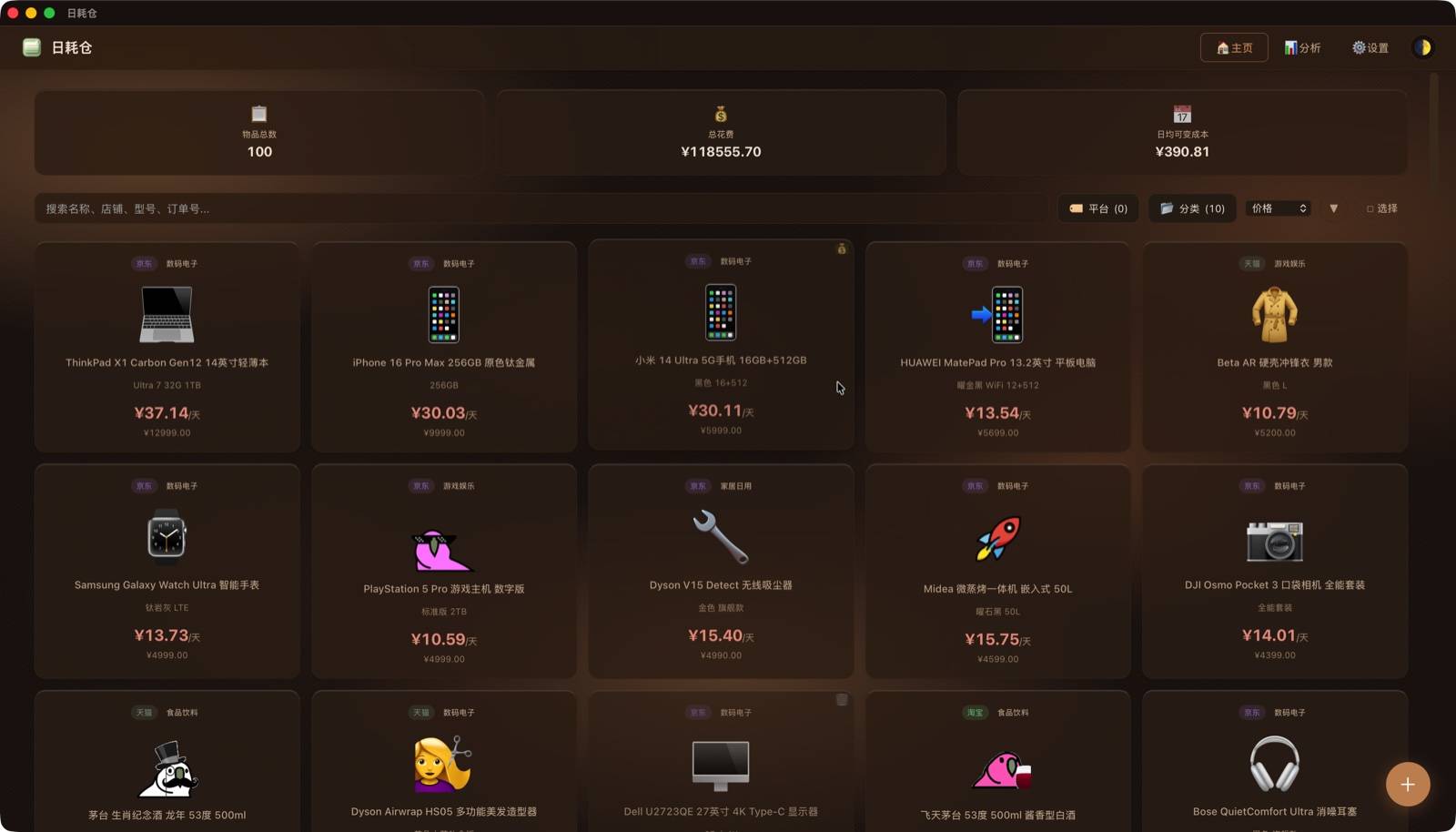
Card Information
Each card shows the platform badge (top-left), item name and emoji icon (center), and daily average cost (bottom — total price display is configurable). The longer you hold an item, the lower its daily cost — this is the "long-term thinking" data proof.
Filter & Search
As your items grow, use filters and search to quickly find what you need:
| Control | Function | How to Use |
|---|---|---|
| 🔍 Search | Fuzzy search by name, store, model, order ID | Type keywords for real-time filtering; ✕ button to clear |
| 🏷️ Platform Filter | Filter by e-commerce platform | Click dropdown, check/uncheck platforms |
| 📊 Sort By | Sort by time/price/daily cost | Dropdown to select sort field |
| ▲▼ Direction | Toggle ascending/descending | Click arrow button to toggle |
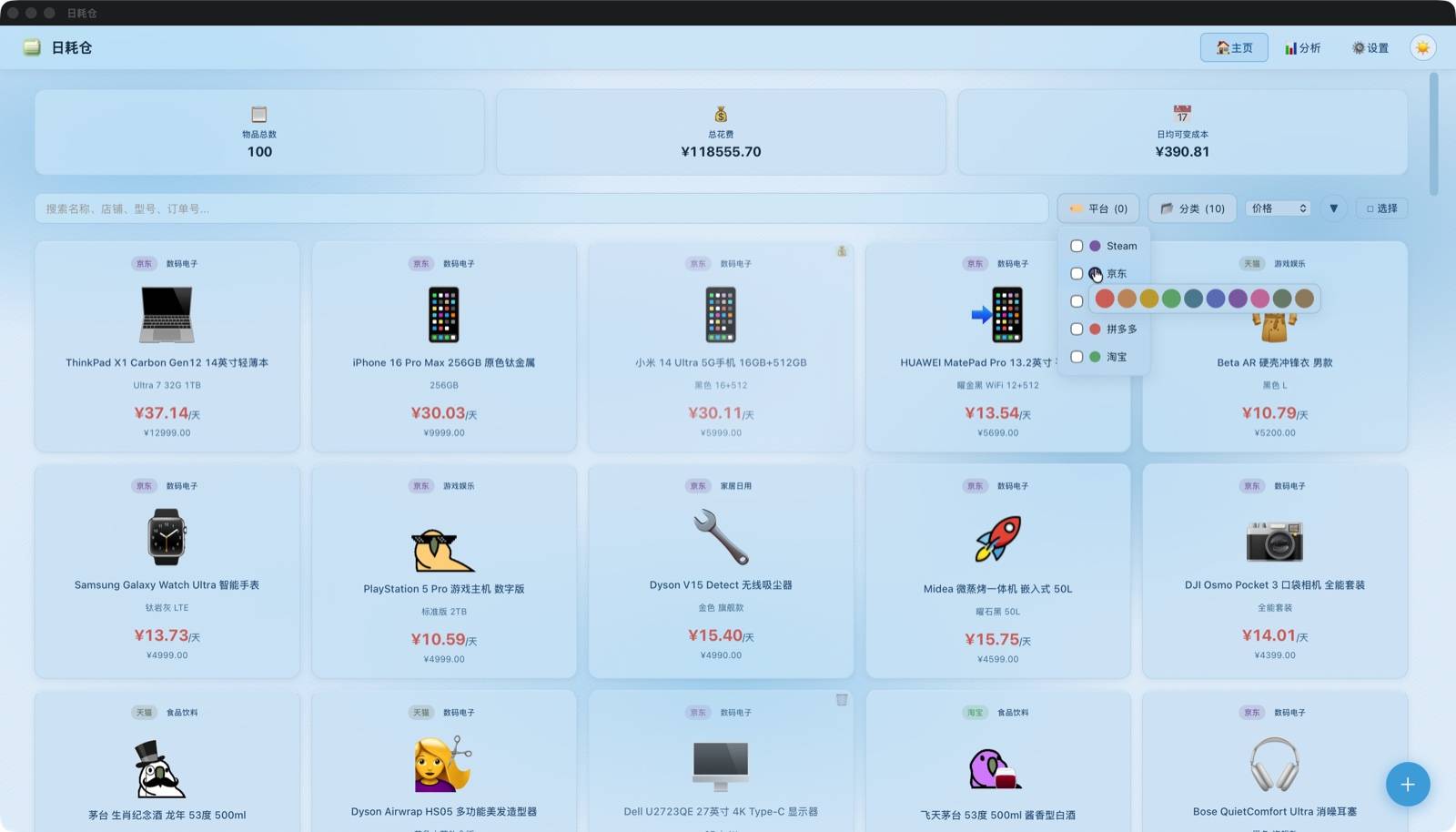
💡 Search supports order ID lookup. Can't remember which store you bought from? Just search the order number.
💡 When search or filters return no results, the page shows contextual guidance (keyword-only / platform-only / combined) with a "Clear All Filters" button.
Manually Add Items
For individual items or platforms not yet supported for batch export.
- Click the ➕ FAB (floating action button) at bottom-right
- Fill in the item details in the form:
| Field | Required | Description |
|---|---|---|
| Product Name | ✅ | Item name, e.g., "iPhone 16 Pro" |
| Icon | — | Click to choose an emoji icon; custom emojis supported |
| Platform | ✅ | Dropdown selection, or type a custom platform (e.g., "Xianyu", "Dewu") |
| Purchase Date | ✅ | Used to calculate holding days |
| Total Price | ✅ | Actual amount paid |
| Quantity | ✅ | Number of items |
| Store | — | Store name |
| Model/Variant | — | Color, specs, etc. |
| Product Link | — | E-commerce product link |
| Status | — | In Use / Sold / Retired |
- Click "Save" — the system auto-calculates daily cost and generates an asset card
Status Types
| Status | Description | Extra Fields |
|---|---|---|
| In Use | Currently in normal use | — |
| Sold | Resold second-hand | End date, sale price |
| Retired | No longer usable or discarded | End date |
💡 Sold status: When marked as sold, the system calculates actual net cost = (Purchase Price − Sale Price) ÷ Days Held. Profit shows in green. Know exactly what your used items are worth!
Item Details & Editing
Click any card to open the detail popup, showing complete information:
- Basic Info: Name, platform, emoji icon
- Cost Data: Purchase price, daily average cost, days held
- Supplementary Info: Store, model/variant, product link
- Status: In Use / Sold / Retired, with end date and sale price
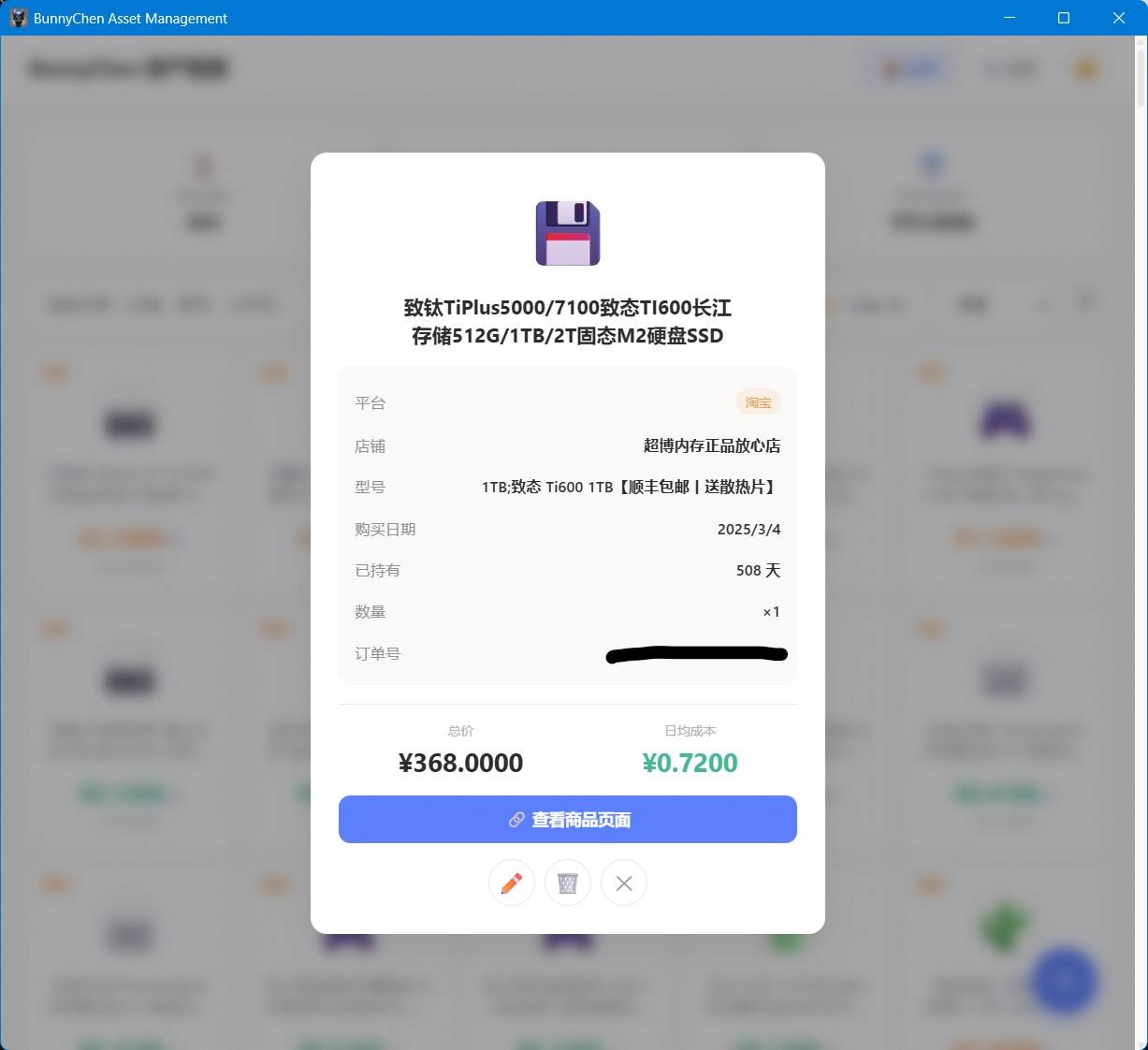
In the detail popup you can:
| Action | Button | Description |
|---|---|---|
| 📝 Edit | "Edit" button | Modify any field of the item |
| 📦 Archive | "📦" button | Hide from home page (data preserved) |
| 🗑️ Delete | "🗑️" button | Permanent deletion (archived items only) |
Archive Management
Archiving is a "soft delete" mechanism — items are hidden from the home page but data is permanently preserved.
Archive an Item
Click the "📦" button in the item detail popup — the item disappears from the home page and moves to the archive list in Settings.
Unarchive
In the Settings page's "Archive Management" section, find the archived item and click "📥" to restore it to the home page.
Permanent Delete
Only archived items can be permanently deleted. In the item detail popup, click "🗑️" and confirm — this cannot be undone.
Permanent deletion is irreversible
Make sure you really don't need the item before confirming.
Batch Operations
When you need to process multiple items at once:
- Click "Select" on the home page to enter batch selection mode
- Check the item cards you want to operate on
- A batch action bar appears at the bottom — click "Batch Archive" to process all at once
The Settings archive management also supports batch "Unarchive" and "Batch Delete".
Quick Actions
| Action | Method |
|---|---|
| Close popup | Click overlay / click ✕ / press Esc |
| Back to top | ↑ button appears at bottom-right after scrolling 400px+ |
| Clear search | ✕ button on search bar |
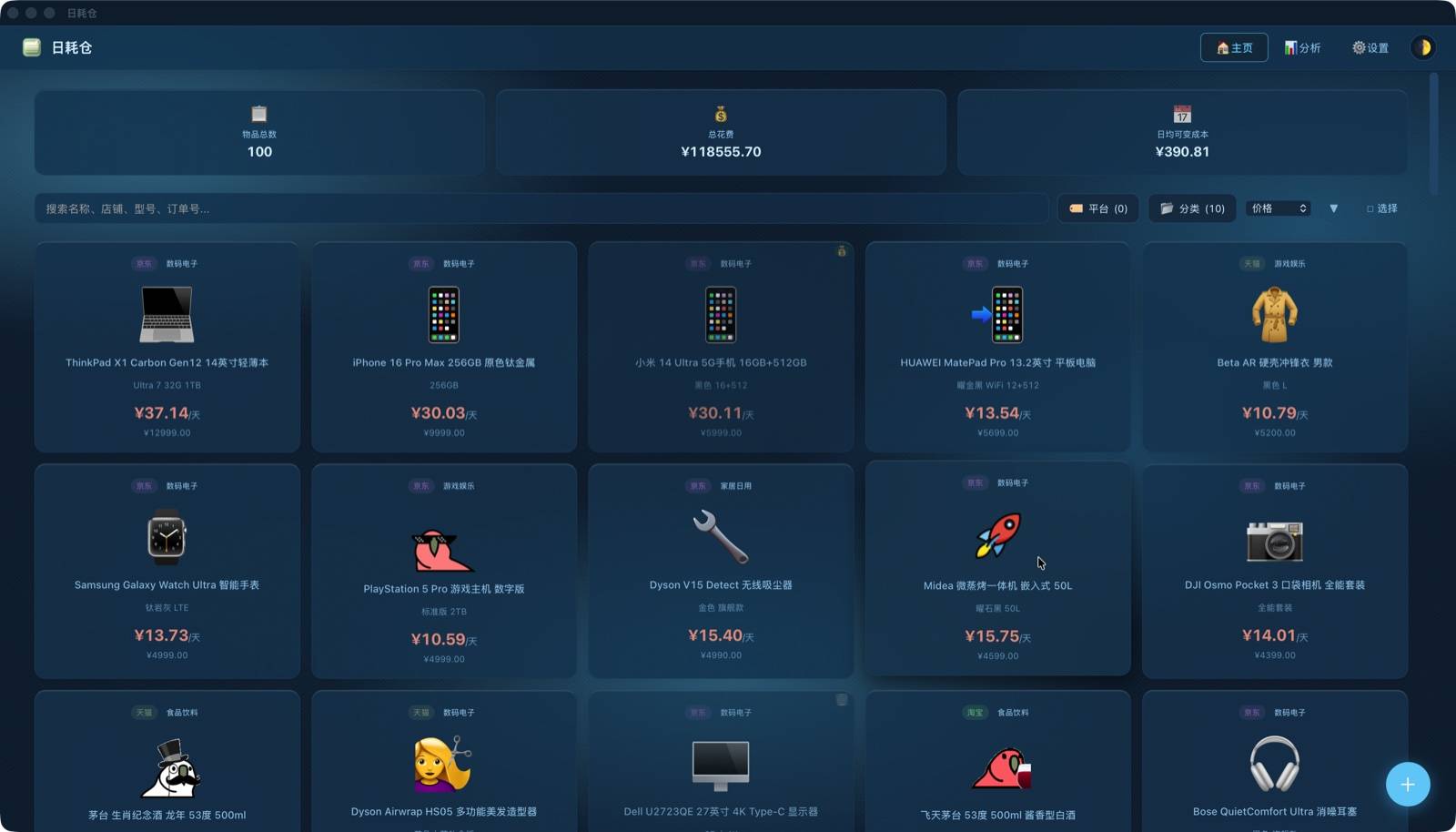
| Quick theme switch | 🌓 button in top nav bar |
Next Steps
Check out 📊 Analytics to understand your spending patterns and trends.